In this release, we are adding support for the ads.txt initiative (also known as Authorized Digital Sellers) to help prevent ad fraud on our network of sites.
What is Ads.txt?
Ads.txt, which stands for “Authorized Digital Sellers,” is a text file placed on the root directory of a site’s domain. The file contains a list of authorization codes which publicly declare the companies authorized to sell digital inventory. Read more about it here. The goal of this initiative is to reduce ad fraud through transparency.
How do I know if I need an ads.txt file?
If you run any programmatic ads on your website, even if it is added via a third-party service such as a widget, it is likely you will require an ads.txt file.
A company may contact you directly about creating an ads.txt file for them to authorize their ads on your domain. Use the ads.txt panel to included the necessary information such as domain name, publisher ID, relationship type, and possibly a certification authority ID (optional).
It is also possible that you will need to reach out to vendors to gather information in order to include in the ads.txt file and avoid any possible lost revenue.
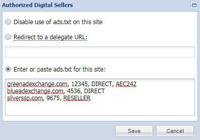
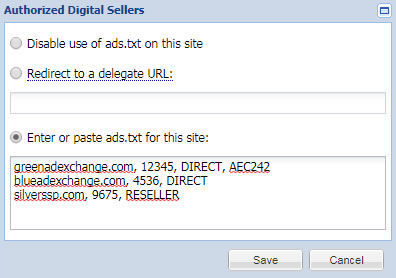
Once ads.txt information is formatted correctly, go to the Settings --> Authorized Digital Sellers panel in the BLOX admin.
There are three options available:
Disabled use of ads.txt on this site (default): No ads.txt file will be created for this site.
Redirect to a delegate URL: This option will perform a 301 redirect to another file. It can be on another site, or on the same site in another location (for example, the /app directory).
This option is very helpful if you have a group of publications and you want to create the same ads.txt file on multiple domains. Choose a “master” domain to host your main file, and then set the other sites to point to that master domain. Then simply update the one master file and all sites reflect those changes after the cache expires.
According to the ads.txt 1.0.1 specification file, the ads.txt file can only be redirected once. It is very important to ensure that no additional redirects happen (ex: www or https redirects). Additional redirects may be in violation of the program’s requirements and not recognized.
Enter or paste ads.txt for this site: Simply cut and paste the ads.txt file into this plain text field following the most recent specifications for ads.txt creation.
To make changes simply go into the Settings --> Authorized Digital Sellers control panel and make updates. As this file caches, it may take up to 15 minutes for changes to fully update.
What if I don't see the Authorized Digital Sellers option in my Settings panel?
By default only "Full Site" admins have access to this panel. If you don't have access, please contact your site administrator, who can add this new permission to relevant groups. Contact our support staff if you need help with the access or if you have questions.